
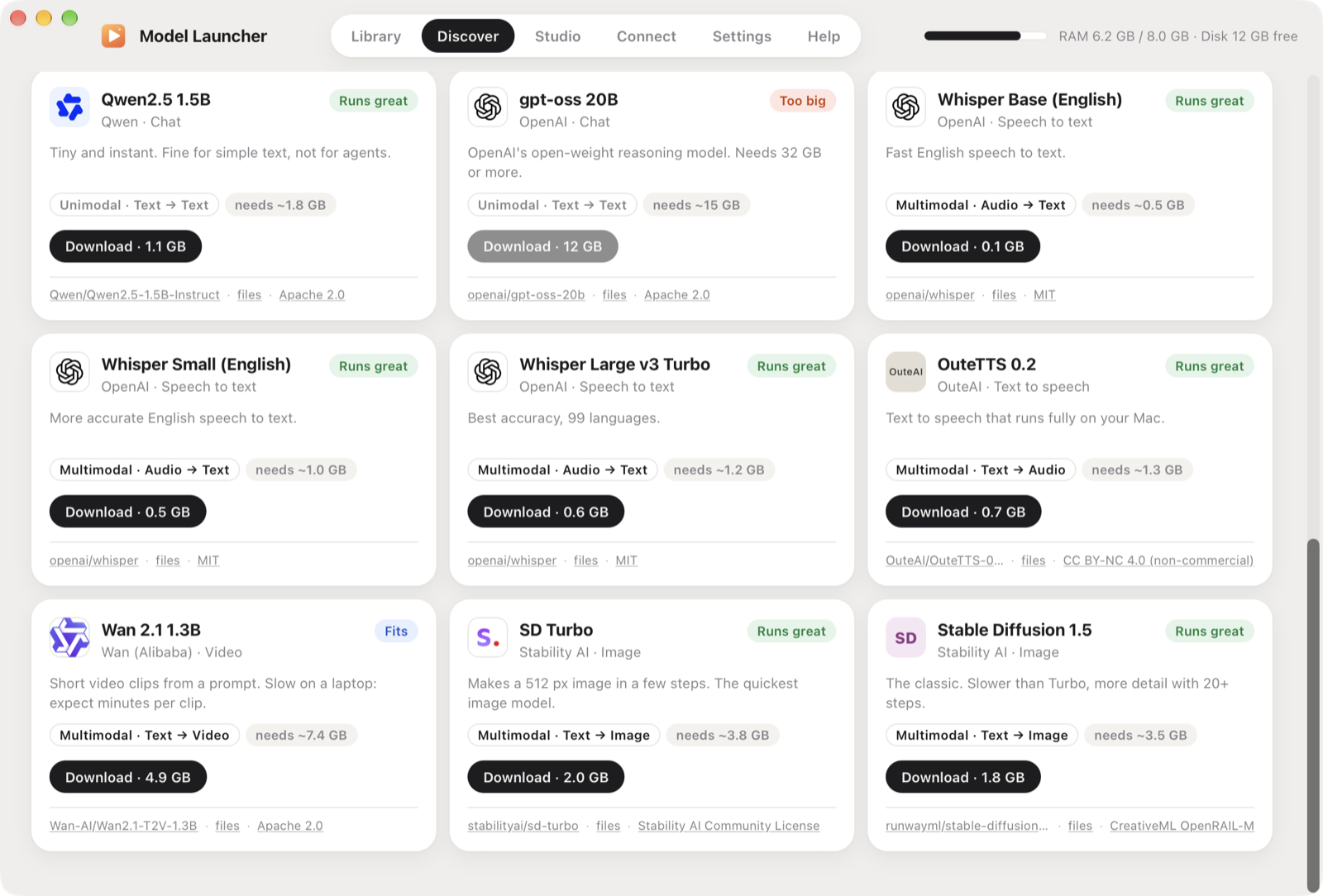
Model Launcher keeps your local models in one folder, shows which ones your Mac can run well, and starts one with a click. Any app that speaks the OpenAI API or MCP (Claude, Cursor, VS Code and others) can use the models it runs.
- Chat with Qwen, Gemma, Llama, gpt-oss and any other
.ggufmodel (llama.cpp), including vision models that read images. - Voice: speech to text with Whisper (whisper.cpp) and text to speech with OuteTTS (llama.cpp).
- Images with SD Turbo and Stable Diffusion, and video with Wan 2.1 (stable-diffusion.cpp).
- Several models at once, hot-swapped. Name any model, in the app or in an API call, and it loads. On a Mac with room, several stay loaded together; when the next one doesn't fit, the least recently used one makes way.
- It won't run away with your memory. You set a RAM budget. Launches that don't fit are refused, a watchdog stops anything that grows past the budget, idle models unload, and you choose CPU threads, GPU use and priority.
- Or push past it, on purpose. Run anyway loads a model bigger than your budget, and Use disk as extra memory lets big models read their weights from the drive as needed. Move all your models to an external SSD in one click.
- Internet access. Chat models can search the web and read pages when a question needs it. One switch in Settings turns it off.
- Benchmarks. Test whether a model can actually use a computer: the built-in tweet test or benchmarks you write yourself, with a report to share. See Benchmark a model.
- Updates itself. It checks GitHub at launch and every 6 hours, and installs new versions once nothing is running.
- One tidy folder. Every model lives in
~/Models/{Chat,Voice,Image,Video}/<model>/. - Bring your own. Paste any Hugging Face link, pick files already on your Mac, or drop in a folder. See Bring your own model.
- Clear sources. Every card says whether a model is unimodal or multimodal, and links where it comes from and its license.
Install
Download the latest Model Launcher.dmg from Releases, open it and drag the app to Applications. Apple Silicon, macOS 13 or later.
The first time a model needs an engine, Model Launcher installs it: llama.cpp and whisper.cpp through Homebrew, and stable-diffusion.cpp from its official release.
Linux (preview): download the .deb (Ubuntu, Debian) or the .AppImage (any distro) from the same page. Engines come from the official llama.cpp, whisper.cpp and stable-diffusion.cpp releases: the Vulkan builds when your GPU supports Vulkan (NVIDIA, AMD or Intel), the CPU builds otherwise. Voice input needs ffmpeg, and the file picker uses zenity or kdialog. Settings, engines and logs live in ~/.local/share/Model Launcher, and models in ~/Models as on the Mac. The RAM budget covers system RAM; a separate GPU's video memory is managed by llama.cpp. The Linux build is new, so please open an issue if something's off.
Benchmark a model
The Benchmark page tests whether a model can use a computer. With Computer Use installed, the model works the Mac by itself, seeing the screen and clicking. The built-in test gives it 10 minutes to open Chrome, go to x.com and post a tweet. Press + New benchmark to write your own: what the model should do, the question you'll answer to check it, and a time limit. Afterwards you say whether it really worked, and the report (benchmark, model, Mac, time, every tool call) is saved to ~/Documents/Computer Use Benchmarks, ready to share on X or as an issue. Your benchmarks are files in its tasks folder, so you can share them too. Prefer the terminal? Computer Use's python3 scripts/benchmark.py does the same and writes to the same folder. See the guide.
Use it from other apps
API (OpenAI-compatible, on this Mac only):
curl http://127.0.0.1:11500/v1/chat/completions \
  -H "Content-Type: application/json" \
  -d '{"model": "qwen3-vl-8b", "messages": [{"role": "user", "content": "Hello!"}]}'
from openai import OpenAI
client = OpenAI(base_url="http://127.0.0.1:11500/v1", api_key="local")
Endpoints: /v1/models, /v1/chat/completions (streaming too), /v1/audio/transcriptions, /v1/audio/speech, /v1/images/generations, and /v1/videos/generations (not part of OpenAI's API; same shape as images).
MCP: in the app, open Connect and press Connect next to Claude, Claude Code, Cursor or Windsurf. Or add it to any MCP client by hand:
{ "mcpServers": { "model-launcher": { "command": "/Applications/Model Launcher.app/Contents/MacOS/model-launcher-mcp" } } }
Tools: list_models, chat, transcribe, speak, generate_image, generate_video, load_model, unload_model.
Docs
- Getting started
- Models and the ~/Models folder
- Memory and resource limits
- API reference
- MCP
- Building from source
How it's built
Models run in their own processes (llama.cpp, whisper.cpp, stable-diffusion.cpp), so a model can never crash the app, and quitting the app always frees their memory.
Contributing
Issues and pull requests are welcome: new catalog models, Windows and Linux support, more engines (MLX, Kokoro TTS, FLUX) and UI polish. See docs/development.md.
Credits and model licenses
Model Launcher stands on llama.cpp and whisper.cpp (ggml.ai, MIT), stable-diffusion.cpp (leejet, MIT) and Tauri (MIT/Apache 2.0). Every catalog model downloads straight from Hugging Face (https://huggingface.co/<repo>/resolve/main/<file>), and each card in the app shows the maker's logo and links its source and license. Logos are the makers' own Hugging Face avatars, shown to credit them:
Model weights aren't part of this repo and keep their own licenses. Check them before commercial use.
Support
Model Launcher is free and open source. If it's useful to you:
- Buy me a drink (a one-off tip)
- Star this repo, and Computer Use too
- Run the benchmark on your machine and share the result
License
Model Launcher's code is MIT.